
The short answer
If a parent receives a verification code they did not request, pause: do not forward the code or approve an unfamiliar sign-in. Open the provider’s app or account website independently to check activity. An unexpected code alone cannot tell you whether someone gained access. If a code was shared, a request was approved or account details changed, follow that provider’s security or recovery steps promptly.
Start with what happened
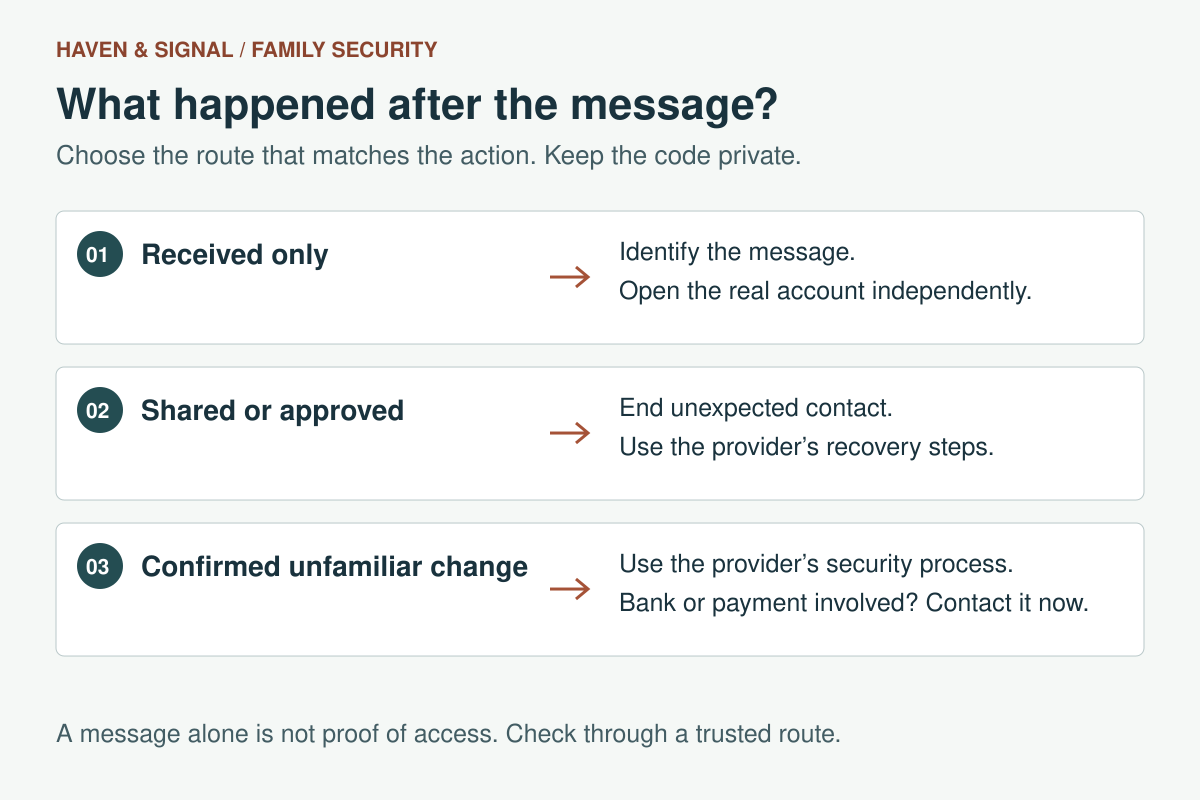
Which situation matches your parent’s message?
You do not need to read every section first. Choose the closest situation below. Keep the actual code and password private.
Helping over the phone? Ask: “Which service is named, and did you only receive the message, share anything or approve something?” Never ask for the code itself. If you are unsure whether an action happened, open the account independently and review its activity.
In this guide 8 sections
What to keep in mind
- 1A text code, an approval prompt and a notice of a completed sign-in require different checks.
- 2An unfamiliar request should not be approved just to make it disappear.
- 3Identify the account provider; an alert on an iPhone can concern a Google account.
- 4Help with the steps while your parent keeps passwords and codes private.
01
First, ask what happened just before the message#
Start with one calm question: were you signing in, resetting a password or setting up an account? A family helper may also have started a task with permission. Agree who initiated it before anyone taps a button. Your parent can describe the service and message without reading out the code.
For a Microsoft account, unexpected codes can follow another person’s access attempt, someone entering the wrong phone number or email address, or delayed delivery. The message by itself does not establish which explanation applies. Do not reply to an unsolicited code message. If uncertainty remains, use Microsoft’s official sign-in help from its support site.
If your parent did start a sign-in, they should enter the code only in the legitimate app or page they opened independently for that task. A caller asking them to read it aloud is a different situation.
02
Separate a code from a prompt or a completed sign-in#
Use these three descriptions to decide the next check. Do not try to diagnose the account from a screenshot alone: a message can be misleading, and genuine providers use different approval and recovery flows.
- A one-time code: a sequence of digits in a text or email. Keep it private and check whether a legitimate task was started.
- An approval prompt: a request to allow or deny access. Reject an unfamiliar request using the genuine provider prompt; do not approve it to stop repeated alerts.
- A security notice: a claim that a sign-in or account change already occurred. Open the account independently and inspect the activity. Treat a confirmed unfamiliar change as a security problem, not merely an unused code.
03
Never pass the code to an unexpected caller#
A verification code can help someone complete an action in an account. The FTC warns that impersonators ask for codes while pretending to solve a problem. End an unexpected call or chat asking for a code; do not forward the text, share its screenshot or enter it into a link that person supplies.
A familiar company name does not settle the question. Google says it does not call people about account security or ask them to read out a verification code or approve a sign-in over the phone. Someone knowing a name or support-case number does not make that caller legitimate.
Open the service through an app already used for the account, a saved trusted bookmark or an address obtained independently. For a banking code, call the bank using the number on a card or statement, or contact it through its official app. Do not use contact details supplied in the alarming message.
04
For a Google prompt, reject the unfamiliar request#
A genuine Google prompt can appear inside a Google app on an iPhone. It concerns the Google account shown, not necessarily the phone manufacturer’s account. If your parent did not try to sign in, tap No on the Google prompt.
Google prompts can be part of different sign-in and account-recovery flows. Their appearance alone does not prove that someone knows the password. Google recommends changing the password if someone else tried to access the account. Open the account independently before following security steps.
05
For an Apple Account alert, choose Don’t Allow#
If a genuine Apple Account sign-in notification on a trusted device describes an attempt your parent does not recognize, choose Don’t Allow. Apple explains that the displayed map is based on the network’s IP address; it can indicate the network’s location rather than the person’s exact location. An unexpected city alone is not conclusive.
Apple lists an unrequested two-factor authentication code among possible signs of compromise. Other signs include unknown devices, unfamiliar account changes or purchases, and a password that no longer works. Follow Apple’s account-security guidance: change the password, review account details and inspect the device list. Remove devices you establish are not recognized; ask about an old phone or tablet before assuming it is an intruder.
06
Check activity and recovery details in the account itself#
For a personal Google Account, open Security & sign-in, then Recent security events and Review security events. Inspect Your devices > Manage devices too. For an unfamiliar event, use the option indicating it was not you and follow Google’s security process. Review recovery phone and email details for changes.
For Apple, open account.apple.com independently to review the account and its devices. If access is lost, use Apple’s recovery route at iforgot.apple.com; recovery can involve waiting. A recovery service promising immediate access is not a substitute for the provider’s process.
For Microsoft, use its official verification-code troubleshooting and sign-in helper. Do not replace all security contact details in a rush: Microsoft warns that removing and replacing all security information can restrict an account for 30 days. Work or school accounts may need their administrator’s help instead of a personal-account recovery route.
08
Leave a small family plan for the next message#
Agree on one trusted helper and a way to call them that your parent already knows. A useful note is: pause, keep the code private, reject unfamiliar approval requests, and open the real account to check. Keep two-step verification enabled while resolving the issue; do not remove a protective step just because the alerts are annoying.
During a support call, ask for the provider’s name and the kind of request, not the digits. Let your parent hold the phone and make the decisions. Record the date, action taken and any official support reference without storing passwords or codes in a shared family document.
Once the immediate concern is resolved, check whether your parent can reach their recovery email and phone number. Our trusted-contacts guide explains ways to prepare for lost access without turning a family helper into the keeper of every password.
Prepare for lost access
Be a trusted contact without collecting passwords.
Agree on recovery roles and support boundaries before the next sign-in problem.Sources and further reading
We favor primary public-health guidance and official product documentation. Section links identify context for documented facts, not validation of our own family-planning steps, schedules or examples. Sources do not imply endorsement of Haven & Signal.
Microsoft: Troubleshoot verification code issuesPossible reasons for unsolicited codes, sign-in help and the restriction when all security information is replaced. Checked September 13, 2026.↗Google: Sign in with Google promptsGoogle prompts on iPhone and iPad, rejecting an unrecognized request and the different uses of a prompt.↗Apple: Reject unknown sign-in attemptsDon’t Allow and the limits of the network-based location displayed on a sign-in alert.↗Apple: If you think your Apple Account has been compromisedPossible compromise signals, account and device review, password changes and official recovery.↗Google: Secure a hacked or compromised accountSecurity events, devices, recovery details and protective steps beyond a password change.↗FTC: What is a verification code and why would someone ask for it?Code-sharing impersonation and contacting a bank through an independently known channel. Reader comments are not used as guidance.↗Google: Account security scams by phoneUnsolicited security calls, code and prompt requests, and callers using personal or case information.↗FTC: How to recognize and avoid phishing scamsChecking a request through a known website or phone number instead of contact details in the message.↗About this guide
Sources, scope and updates.
- Research
- Haven & Signal Research Desk
- Sources checked
- September 13, 2026
- First published
- September 13, 2026
- Materially updated
- October 16, 2026
This guide draws on the linked sources and practical editorial guidance. It does not report hands-on product testing, independent fact-checking, and an expert assessment. Check current instructions with the relevant provider before acting.
This guide contains no affiliate links or paid placements.