
The short answer
Remote support is safest when the parent starts the request, reaches a known helper through a saved channel, approves the smallest level of access, and watches the whole session. This guide turns those principles into a routine the family can use on an ordinary support day and a separate recovery plan for suspicious access.
In this guide 9 sections
What to keep in mind
- 1No unexpected caller, message, search result, or pop-up gets remote access. End the contact and call a known person or the company through independently verified details.
- 2Start with verbal coaching or view-only sharing. Move to one-time control only when it is needed for the named task and the parent knowingly approves it.
- 3Keep email, banking, health, tax, password-manager, and payment screens closed. Passwords and ordinary verification codes stay with the account owner.
- 4End both remote control and screen sharing before a private login and before saying goodbye. Confirm that neither remains active, then record the small set of changes that were made.
Match both devices
Which support route fits your family?
Start with the device receiving help, then check the helper's device. These five combinations cover the routes below, not every remote-support product. Official instructions checked September 10, 2026.
01
Make one rule stronger than the caller’s story#
The software on the screen cannot prove who is on the phone. The Federal Trade Commission warns that tech-support impostors use calls, messages, alarming pop-ups, fake invoices, search ads, and familiar company names to persuade people to reveal control of a computer. A legitimate remote-control app can still be operated by a criminal.
Give the parent a rule that does not require judging the caller’s accent, confidence, logo, case number, or technical language: no unexpected contact gets access. Hang up, close the message, and call a trusted relative using a saved number. If company support is really needed, open its official app or type its known web address rather than following the contact details supplied by the person creating the urgency.
Remote support begins with a call the parent made to a person or company they already intended to contact. It never begins with a warning, refund, renewal notice, or stranger’s request.
02
Use the same opening check every time#
Choose the small number of people who may provide remote help and save their contact details in advance. When help is needed, the parent calls one of those people through the usual family channel. The helper then repeats the exact task, names the support method, explains whether they will only view the screen or request control, and gives a likely end time.
A family phrase can add reassurance, but it is not a password and should never override an unusual situation. If either person received the request through a new number, feels pressured, or cannot explain the task clearly, stop. Call back through the saved number before sharing anything.
- Identity: the parent reached the helper through a saved, familiar channel.
- Task: both people can say what is being fixed and what is outside the session.
- Access: view only, temporary control, or no remote access at all is chosen before the tool opens.
- Exit: the parent knows which button ends sharing and may use it at any time.

03
Choose the least access that can solve the problem#
Remote control should not be the starting point. First try a normal telephone call. If the helper needs to see the problem, the parent can point a second device’s camera at the screen or share the screen without granting control. Only then consider a one-time control session that requires a fresh code or approval.
Keep a voice call open and ask the parent to describe what they see. Narrate every action. Ask again before installing an app, changing a security or privacy setting, opening a file, deleting anything, or restarting the device. The person receiving help remains the owner of the session, not a spectator.
- Level 1: talk through the steps with no screen access.
- Level 2: view the screen while the parent taps or clicks.
- Level 3: use one-time control for the named task, with the parent present.
- Level 4: persistent or unattended access only after a specific need, informed agreement, account protection, and professional security review.
Convenience is not the same as necessity. A tool that launches at startup or allows unattended access remains a route into the device after the family call ends.
04
Clear the room before sharing the screen#
Before screen sharing, close email, banking and investment apps, health portals, tax documents, private photos, messaging threads, and the password manager. Turn off visible notification previews if the platform does not already hide them. Share one window instead of the whole desktop when the tool provides that choice.
Do not open a financial account during a remote session. If the problem concerns a bank, payment, refund, or transfer, end remote access first and call the institution through the number on the card, statement, or official app. A helper does not need to watch a transaction to solve an unrelated device problem.
05
Keep passwords and ordinary verification codes private#
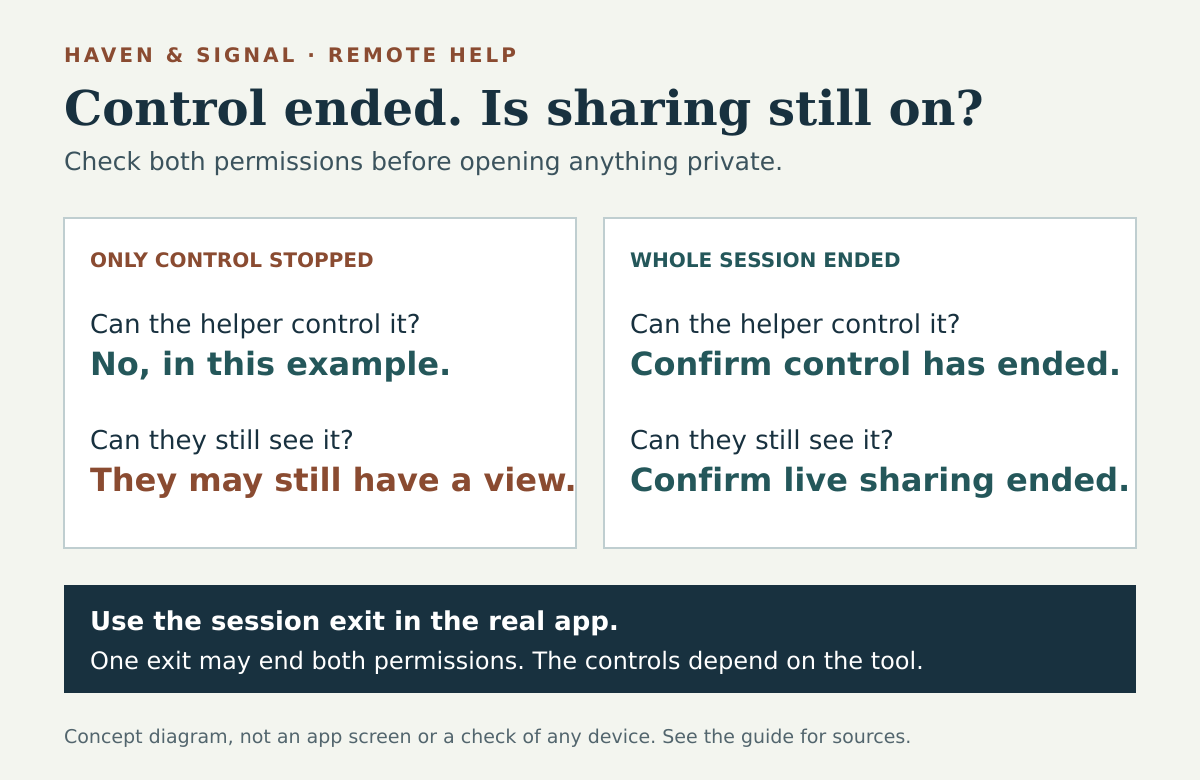
Before entering a password or ordinary verification code, end both remote control and screen sharing and confirm that neither remains active on the parent’s device. Pausing or cancelling control alone may leave the screen visible. The parent can then sign in privately; resume sharing only if the remaining task still needs screen access, with private apps and account information closed.
The helper should never ask the parent to read a password aloud, paste it into chat, store it in a family document, or send a photograph of it. If the task is password recovery, use the provider’s official recovery process rather than borrowing the parent’s identity.
The FTC says an ordinary account verification code is for the account owner to enter and should not be given to someone who asks for it. Keep that rule simple. A provider-specific recovery contact process may deliberately create a code for a trusted contact to relay, but that is a separate, prearranged flow started inside the provider’s official settings. For example, Apple says a designated recovery contact can supply a recovery code without gaining access to the account.
A caller who asks for a login code is not proving your parent’s identity. They may be trying to complete their own login to your parent’s account.
06
Know what the built-in tools actually permit#
On a supported iPhone or iPad, a one-to-one FaceTime call can allow screen sharing and a separate request for remote control. Apple says the receiving person must approve control and can stop it at any time. The controller may open apps, change settings, delete items, or send messages. Some sensitive actions are restricted, but that protection is not a reason to expose private apps.
Apple currently states that this iPhone/iPad remote-control feature is unavailable in the European Union. Both participants need an iPhone or iPad running iOS 18 or iPadOS 18 or later, and the helper must be saved in the parent’s contacts. Other restrictions may still apply; check that the control request is available on the actual devices before depending on it.
On Windows, Quick Assist gives the helper a six-digit code. The person receiving help enters it, sees the helper’s identity, and approves screen sharing. Full control requires another request and approval, and either person can leave. Microsoft explicitly advises using it only with people you trust because an approved helper can see the screen and may control the computer. For family help, use the Windows app; Microsoft reserves its browser and macOS Quick Assist routes for Microsoft Support interactions.
Chrome Remote Desktop can generate a one-time support code on a computer. Google says the person receiving help sees the helper’s email address and must select Share before full access begins. The code works once, the person is asked to reconfirm continued sharing every 30 minutes, and Stop Sharing ends the session. This is different from configuring a computer for ongoing remote access.
Platform menus, eligibility, and regional availability change. Open the current official support page together before the session instead of following an old screenshot or an ad in search results.
07
End the session while both people are still talking#
Do not say goodbye while access is still active. End both remote control and screen sharing, and confirm that neither indicator remains on the parent’s device. In Quick Assist, use Leave to end the session; Cancel control only removes control permission. Ending the FaceTime call ends both sharing and control. In Chrome Remote Desktop support, use Stop Sharing.
Before a private sign-in
Two permissions to close, one final check
A helper losing control does not necessarily mean they have stopped seeing the screen. Choose the exit for your tool below, then check the device receiving help before opening anything private.
| Support tool | What can leave viewing active? | Exit to use | Check before continuing |
|---|---|---|---|
| FaceTime on iPhone or iPad | Declining or stopping remote control is separate from ending screen sharing. | End the FaceTime call to end both. If you keep the call open, stop Screen Sharing through the FaceTime controls and check that control has also ended. | Look for screen-sharing status and any “Remote Control Active” message. Do not open private content while either remains. Apple instructions. |
| Quick Assist on Windows | Cancel control removes full control; it is not the session exit. | Select Leave. | Confirm the assistance session has ended. If the helper still has a live view, leave private accounts closed. Microsoft instructions. |
| Chrome Remote Desktop support | This one-time support flow grants full computer access. It is not a separate view-only permission. | On the computer receiving help, select Stop Sharing. | Confirm sharing has ended. If ongoing Remote Access was separately configured, review that setting too; ending this session does not remove that separate setup. Google instructions. |
A useful double-check: while a harmless practice page is still open, ask the helper whether they still receive a live view. Check the local sharing controls too. A frozen picture of the old screen alone does not tell you whether a connection is active. These are practical checks, not proof that a device is uncompromised.
For a computer you no longer want available through Chrome Remote Desktop's ongoing Remote Access setup, Google provides Disable remote connections beside that computer at Remote Access. This is a different action from ending a one-time support session. On a managed device, ask its administrator before changing an approved access setup.
Practise ending a remote-help session, without connecting a device
Quit the support app. If software was installed only for this task, follow the current vendor instructions to remove it. Check whether it was allowed to start automatically, appear in an access list, or accept unattended connections.
Write a short support note: date, helper, device, problem, tool, settings changed, software installed or removed, and anything still unresolved. Do not record passwords or recovery codes. This small log gives the next helper context and makes an unfamiliar app or setting easier to investigate.
- Both screen sharing and remote control ended visibly on the parent’s device.
- Temporary software and downloads were removed if no longer needed.
- No unattended-access setting, saved helper, or automatic startup remains by accident.
- The device still restarts, reconnects, and performs the original task.
08
Use a separate recovery plan after suspicious access#
If an unknown person may still be connected, end the session and disconnect the device from the internet. Use a different trusted device to contact the bank, email provider, mobile carrier, or technology company through official details. Preserve the caller’s number, messages, receipts, app name, and time of contact, but do not continue talking to the suspected scammer to collect evidence.
The FTC recommends updating security software, running a scan, removing anything it identifies, changing passwords, and turning on two-factor authentication after a scammer had device access. Start with the primary email account because it may reset other accounts. Review recovery details and active sessions, then review financial activity and call the bank immediately if payment or account information may have been exposed.
Report the incident through the relevant provider and authority. In the United States, the FTC accepts reports at ReportFraud.ftc.gov and offers a guided recovery plan at IdentityTheft.gov when personal information was misused. Other countries have their own reporting and identity-recovery services. Keep the family conversation calm. Early disclosure protects more than blame ever will.
09
Make the next support call shorter and safer#
Keep a one-page device record with the model, operating-system version, internet provider, carrier, official support address, and names of approved family helpers. Record where the device is charged and how the parent normally reaches the helper. Do not include passwords, one-time codes, full payment numbers, or copies of identity documents.
Turn on automatic security updates when the device and care situation allow them, protect important accounts with multifactor authentication, and use a password manager the parent can operate or a provider-designed recovery contact. Review the approved helper list and any remote-access software every three months. A calm ten-minute practice session is more useful than introducing the tool for the first time during a crisis.
Printable privacy tool
Set the boundaries before a support session.
Record who may help, which accounts stay private, what requires fresh permission, and how access must end.
Create a family privacy agreementSources and further reading
We favor primary public-health guidance and official product documentation. Section links identify context for documented facts, not validation of our own family-planning steps, schedules or examples. Sources do not imply endorsement of Haven & Signal.
Federal Trade Commission: How to spot, avoid, and report tech support scamsUnexpected support contacts, fake warnings, remote access, payment pressure, and reporting guidance.↗Federal Trade Commission: What to do if you were scammedRecovery actions after sharing access, credentials, money, or personal information.↗Federal Trade Commission: What is a verification code and why would someone ask for it?Why login verification codes must remain with the person signing in and how scammers try to obtain them.↗Cybersecurity and Infrastructure Security Agency: Online safety tips for older adultsCurrent older-adult guidance for device locks, software updates, strong passwords, privacy settings, and careful sharing.↗Apple Support: Manage screen sharing and screen control in FaceTimeSeparate sharing and control permissions, distinct stop actions, and limits on sensitive actions; session-ending guidance rechecked September 10, 2026.↗Apple iPad User Guide: Request or give remote control in a FaceTime calliOS/iPadOS 18 or later for both participants, saved-contact eligibility, further possible restrictions, and the stated European Union availability limit; rechecked September 10, 2026. Availability can change.↗Microsoft Support: Solve PC problems remotely using Quick AssistSix-digit codes, separate sharing/control permission, Leave versus Cancel control, and the Windows family-help scope; rechecked September 10, 2026.↗Google Chrome Help: Access another computer with Chrome Remote DesktopOne-time support codes, helper identity, full-access warning, reconfirmation, and stopping screen sharing.↗Apple Support: Set up a recovery contact for your Apple AccountThe narrow role of a designated recovery contact and the official recovery-code process.↗About this guide
Sources, scope and updates.
- Research
- Haven & Signal Research Desk
- Sources checked
- September 4, 2026
- First published
- September 4, 2026
- Materially updated
- October 16, 2026
- Editor
- André Ribeiro. Page reviewed September 4, 2026.
This guide draws on the linked sources and practical editorial guidance. It does not report hands-on product testing, independent fact-checking, and an expert assessment. Check current instructions with the relevant provider before acting.
This guide contains no affiliate links or paid placements.