
The short answer
A missed family call can come from several different settings: a silent phone, low ringtone volume, a quiet-hours rule, an unsaved number, or call filtering. Work through them with your parent, changing one thing at a time. The useful result is a small, agreed caller list and a successful ordinary-call check, with a backup plan for the times a call still fails.
Check the symptom first
What happens when the family calls?
With your parent’s permission, use one agreed ordinary call to observe the problem. Choose the closest symptom, change one relevant setting, then try again. Do not call an emergency number to test.
Keep the problem separate from the person’s safety. If the concern is that your parent may be unable to answer, use the missed-contact plan while you arrange appropriate help. This guide troubleshoots ringing settings; it cannot establish why a person has not answered.
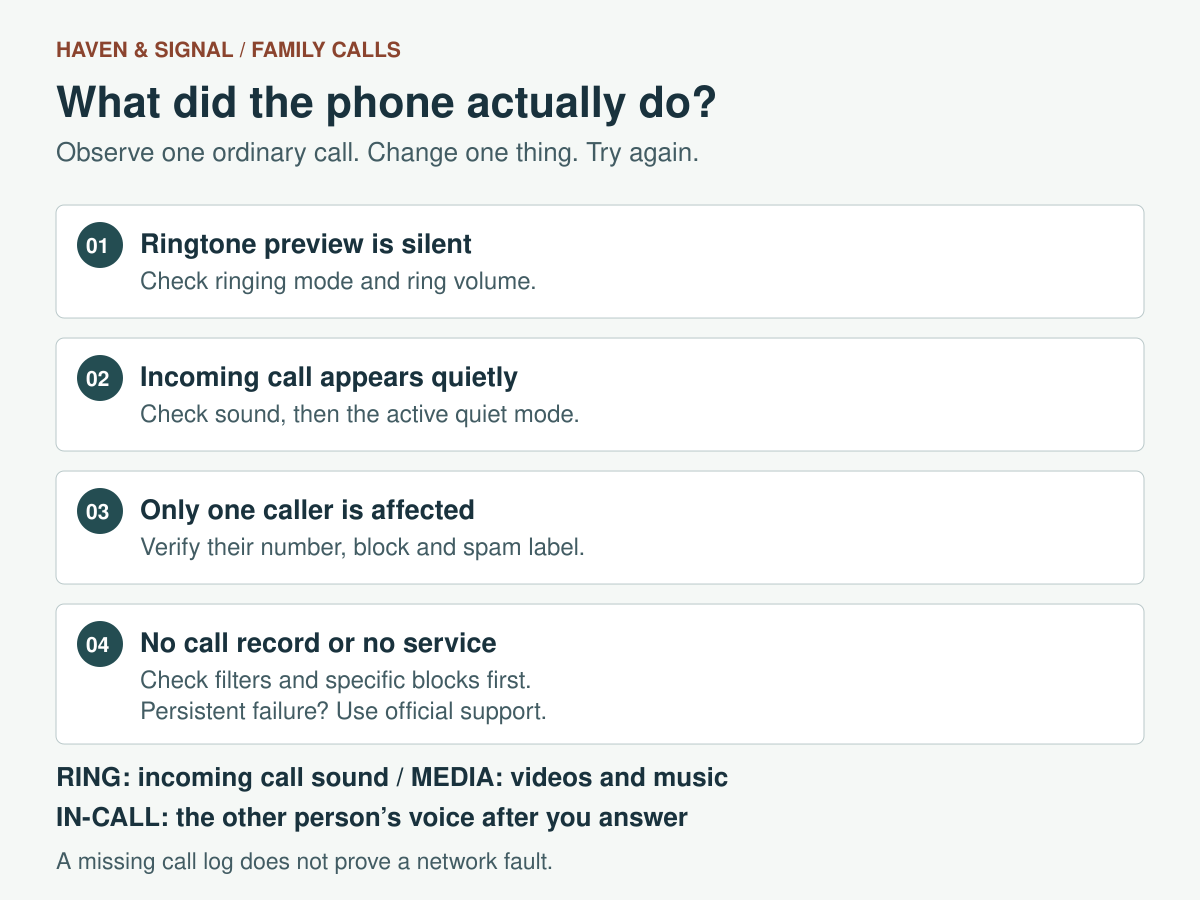
In this guide 10 sections
What to keep in mind
- 1A Focus or Do Not Disturb exception does not by itself establish that the phone will ring audibly.
- 2Save and verify the actual number each relative uses before changing unknown-call or spam settings.
- 3Repeat-caller exceptions are broader than a family-only list: Apple uses three minutes; Google and Samsung document fifteen.
- 4Check both an incoming call and a return call at an agreed time, then record how to undo the change.
Do it together
Help an agreed family call ring through
Check sound and caller allowances, then try one ordinary call. The phone owner chooses who may interrupt and when.
Instructions checked September 11, 2026. These are directions for your phone; this page does not change its settings. Practice suggestions are ours, based on the official instructions linked below.
Current iPhone sound and Focus controls; labels vary with iOS version. An allowance alone does not guarantee an audible ring.
iPhone · Step 1 of 6
Agree on one task
- The helper
- Agree whose ordinary calls may interrupt and at what time. If helping remotely, arrange another way to reconnect before changing settings.
- The phone owner
- Check the caller’s actual number against the saved contact. Decide whether that person may interrupt this quiet period.
Choose a smaller task or stop for today. The phone owner decides what to change. Use the session guide in Resources if you want a plan for helping.
Open the full guide’s sources ↓Printing includes all six steps for iPhone, the alternatives and source links.
iPhone: all steps
Current iPhone sound and Focus controls; labels vary with iOS version. An allowance alone does not guarantee an audible ring.
1. Agree on one task
- The helper
- Agree whose ordinary calls may interrupt and at what time. If helping remotely, arrange another way to reconnect before changing settings.
- The phone owner
- Check the caller’s actual number against the saved contact. Decide whether that person may interrupt this quiet period.
If it does not work: Choose a smaller task or stop for today. The phone owner decides what to change. Use the session guide in Resources if you want a plan for helping.
Link to this step2. Check the ringing sound
- The helper
- Note the current sound mode and volume first. Ringing volume is different from media or the other person’s voice during a call.
- The phone owner
- Open Settings > Sounds & Haptics > Ringtone and Alerts. Choose a comfortable level and check Silent mode is off. A Ring/Silent switch should not show orange; on an Action-button model, check Silent mode in Control Center.
If it does not work: If the ringtone still makes no sound, pause caller-rule changes and use the full guide or official device support. Keep an agreed backup contact method.
Link to this step3. Check the active quiet mode
- The helper
- Identify the mode used during the agreed call time and record its existing people and call allowances. If none is active, skip this change.
- The phone owner
- Open Settings > Focus > the relevant mode > People. If you agree to change it, use Allow Notifications From for agreed contacts and review the separate call-group allowance.
If it does not work: Pause here if you cannot find the control. Check the phone model and software version, then use the official instructions below. Do not change a different setting just because its name looks similar.
Link to this step4. Keep the caller list narrow
- The helper
- Review any selected group with the phone owner. Leave repeat-caller and unknown-call or spam settings alone for this trial.
- The phone owner
- Check that the allowance covers the agreed people. It may affect messages or notifications too. If the mode is not used for this call, keep its settings unchanged.
If it does not work: If an agreed number is still being filtered, investigate that specific number in the full guide. Do not disable all spam or unknown-call controls.
Link to this step5. Try an ordinary call
- The helper
- End the support call first if needed. At the agreed time, call from the verified number while the phone is locked in its usual place and the relevant quiet mode is active.
- The phone owner
- Answer, end the call and call back. Say whether the ring was comfortable. Use only ordinary family calls for practice.
If it does not work: Never call an emergency number to test. If the call fails, use your backup channel and note whether a missed call or voicemail appeared. A successful trial does not guarantee future delivery.
Link to this step6. Keep it, or put it back
- The helper
- Ask which setup the person prefers. Leave the setting name, original value and undo instruction on paper. Do not write passwords or codes.
- The phone owner
- Restore the original sound mode, volume and caller allowances if the change is intrusive. Restore any quiet-mode activation changed for the trial. Keep existing exceptions; do not delete a whole Focus or reset the phone.
If it does not work: If the change makes the phone harder to use, restore the recorded setting with the person’s permission. Stop adding changes and use official support if you cannot restore it.
Link to this step
Official device instructions
Android: all steps
Google’s sound and Modes instructions include Android 12+ and 14+ steps. Older menus differ; use Samsung for Galaxy.
1. Agree on one task
- The helper
- Agree whose ordinary calls may interrupt and at what time. If helping remotely, arrange another way to reconnect before changing settings.
- The phone owner
- Check the caller’s actual number against the saved contact. Decide whether that person may interrupt this quiet period.
If it does not work: Choose a smaller task or stop for today. The phone owner decides what to change. Use the session guide in Resources if you want a plan for helping.
Link to this step2. Check the ringing sound
- The helper
- Note the current sound mode and volume first. Ringing volume is different from media or the other person’s voice during a call.
- The phone owner
- Press a volume button, expand the controls and adjust Ring volume. Select ringing rather than vibrate or mute.
If it does not work: If the ringtone still makes no sound, pause caller-rule changes and use the full guide or official device support. Keep an agreed backup contact method.
Link to this step3. Check the active quiet mode
- The helper
- Identify the mode used during the agreed call time and record its existing people and call allowances. If none is active, skip this change.
- The phone owner
- Open Settings > Modes > the active mode > Notification filters > People. Inspect calls and select the smallest offered allowance that covers the agreed people. Older phones may put Do Not Disturb under Sound & vibration.
If it does not work: Pause here if you cannot find the control. Check the phone model and software version, then use the official instructions below. Do not change a different setting just because its name looks similar.
Link to this step4. Keep the caller list narrow
- The helper
- Review any selected group with the phone owner. Leave repeat-caller and unknown-call or spam settings alone for this trial.
- The phone owner
- Check that the allowance covers the agreed people. It may affect messages or notifications too. If the mode is not used for this call, keep its settings unchanged.
If it does not work: If an agreed number is still being filtered, investigate that specific number in the full guide. Do not disable all spam or unknown-call controls.
Link to this step5. Try an ordinary call
- The helper
- End the support call first if needed. At the agreed time, call from the verified number while the phone is locked in its usual place and the relevant quiet mode is active.
- The phone owner
- Answer, end the call and call back. Say whether the ring was comfortable. Use only ordinary family calls for practice.
If it does not work: Never call an emergency number to test. If the call fails, use your backup channel and note whether a missed call or voicemail appeared. A successful trial does not guarantee future delivery.
Link to this step6. Keep it, or put it back
- The helper
- Ask which setup the person prefers. Leave the setting name, original value and undo instruction on paper. Do not write passwords or codes.
- The phone owner
- Restore the original sound mode, volume and caller allowances if the change is intrusive. Restore any quiet-mode activation changed for the trial. Keep existing exceptions; do not delete a whole Focus or reset the phone.
If it does not work: If the change makes the phone harder to use, restore the recorded setting with the person’s permission. Stop adding changes and use official support if you cannot restore it.
Link to this step
Official device instructions
Samsung Galaxy: all steps
Samsung’s example uses a Galaxy Z Flip7. Older Galaxy phones may show different choices.
1. Agree on one task
- The helper
- Agree whose ordinary calls may interrupt and at what time. If helping remotely, arrange another way to reconnect before changing settings.
- The phone owner
- Check the caller’s actual number against the saved contact. Decide whether that person may interrupt this quiet period.
If it does not work: Choose a smaller task or stop for today. The phone owner decides what to change. Use the session guide in Resources if you want a plan for helping.
Link to this step2. Check the ringing sound
- The helper
- Note the current sound mode and volume first. Ringing volume is different from media or the other person’s voice during a call.
- The phone owner
- Open Settings > Sounds and vibration. Choose Sound and check the ringtone volume at a comfortable level.
If it does not work: If the ringtone still makes no sound, pause caller-rule changes and use the full guide or official device support. Keep an agreed backup contact method.
Link to this step3. Check the active quiet mode
- The helper
- Identify the mode used during the agreed call time and record its existing people and call allowances. If none is active, skip this change.
- The phone owner
- Open Settings > Notifications > Do not disturb > Calls and messages. Where offered, use Allow only select contacts and add agreed people. Review the separate Calls group too.
If it does not work: Pause here if you cannot find the control. Check the phone model and software version, then use the official instructions below. Do not change a different setting just because its name looks similar.
Link to this step4. Keep the caller list narrow
- The helper
- Review any selected group with the phone owner. Leave repeat-caller and unknown-call or spam settings alone for this trial.
- The phone owner
- Check that the allowance covers the agreed people. It may affect messages or notifications too. If the mode is not used for this call, keep its settings unchanged.
If it does not work: If an agreed number is still being filtered, investigate that specific number in the full guide. Do not disable all spam or unknown-call controls.
Link to this step5. Try an ordinary call
- The helper
- End the support call first if needed. At the agreed time, call from the verified number while the phone is locked in its usual place and the relevant quiet mode is active.
- The phone owner
- Answer, end the call and call back. Say whether the ring was comfortable. Use only ordinary family calls for practice.
If it does not work: Never call an emergency number to test. If the call fails, use your backup channel and note whether a missed call or voicemail appeared. A successful trial does not guarantee future delivery.
Link to this step6. Keep it, or put it back
- The helper
- Ask which setup the person prefers. Leave the setting name, original value and undo instruction on paper. Do not write passwords or codes.
- The phone owner
- Restore the original sound mode, volume and caller allowances if the change is intrusive. Restore any quiet-mode activation changed for the trial. Keep existing exceptions; do not delete a whole Focus or reset the phone.
If it does not work: If the change makes the phone harder to use, restore the recorded setting with the person’s permission. Stop adding changes and use official support if you cannot restore it.
Link to this step
Official device instructions
No account is needed. Your place is not saved after closing the page; keep the step link if you want to return.
01
Agree whose calls may interrupt, and when#
Start with a specific invitation: “Would you like my calls and Maya’s calls to make a sound during our evening call window?” Your parent chooses the people, times, and level of interruption. Include whether the same people may interrupt sleep or appointments; an evening conversation does not automatically justify an overnight exception.
Sit together, or arrange help from someone your parent welcomes. Before editing, note the phone model, software version, active quiet mode, and existing caller allowance. Record only the settings needed to undo your change. A photo of the settings is optional and may reveal other contacts, so keep it with the parent or use a short written note instead.
02
Check audible ringing before changing caller rules#
Sound controls and caller permissions answer different questions. First check whether the phone can make an audible ringtone at a comfortable level. Playing a video or hearing the other person during a call does not establish that incoming-call volume is suitable.
On iPhone, open Settings > Sounds & Haptics and adjust Ringtone and Alerts. Check that Silent mode is off: on a Ring/Silent-switch model, orange should not show; on an Action-button model, check Silent mode in Control Center. The Action button may have another assignment.
On Android, expand the volume controls and adjust Ring volume, rather than Media or Call volume, and select ringing rather than vibrate or mute. Google’s current instructions include steps for Android 12 and later. On Galaxy, check Settings > Sounds and vibration, choose Sound, and inspect the ringtone volume. Use your parent’s normal phone position for the later call check; a phone audible in your hand may be missed in another room.
03
Verify the number your family actually calls from#
Compare the number on an agreed incoming call with the saved contact. A relative may have changed numbers, selected a work line, or started calling from a different device. Update the contact with the parent’s agreement, keeping labels such as “Maya — mobile” understandable. Do the same for each person in the small caller group.
On phones using Phone by Google, Phone > menu > Settings > Blocked numbers lets you inspect specific blocks. Remove only a confirmed accidental family-number block. Its Unknown switch blocks private or unidentified numbers; it does not mean every number missing from Contacts. If your relative appears as private, resolve that with the caller instead of opening the phone to all private calls. Samsung’s dialer has its own controls.
04
On iPhone, edit the Focus that is actually active#
Open Settings > Focus and choose the relevant mode, such as Do Not Disturb or Sleep. Under People or Choose People, use Allow Notifications From and add the agreed contacts. Silence Notifications From is the opposite kind of list. Review the separate options for allowing calls from groups of people; select a group whose membership matches the agreement.
Make the change in each Focus that covers the agreed call time. Allowing someone in one Focus does not configure every other Focus. Review the people allowance with your parent because it can affect notifications beyond telephone calls.
Emergency Bypass is a separate, broader choice that can allow a contact’s sounds when the phone itself is silenced. Discuss that consequence explicitly before considering it. An ordinary scheduled family call is a good reason to start with the sound and Focus settings above.
05
Keep iPhone unknown-call settings distinct from Focus#
Apple’s iOS 26 guide describes three choices in Settings > Apps > Phone for unknown-call screening: Never does not screen unsaved numbers; Ask Reason for Calling requests information before the phone rings; Silence sends those calls quietly to voicemail. Check the installed version before following these labels. A parent’s older phone may present different controls.
The Unknown Callers filter is different again: it moves unknown calls out of the main recent-call list. Spam filtering silences calls the carrier identifies as possible spam or fraud. To investigate a missed call, use the Phone app’s Filter button and inspect Unknown Callers or Spam where available.
For a relative calling from a verified number, save the correct contact and check its treatment before loosening screening. Allowing family through Focus is not a reason to turn every unknown-call or spam option off. Also discuss expected calls from unsaved numbers, such as a delivery driver: the parent needs to know where to look for those missed calls.
06
On Android, allow people within the relevant mode#
Google’s current route is Settings > Modes > the mode in use, then Notification filters > People. Review the call permissions and select the narrowest available allowance that covers the agreed relatives. Check the people included in any selected group. Google says some of its instructions require Android 14 or later and that settings vary by phone; older menus may place Do Not Disturb under Sound & vibration.
Keep call permissions separate from the app allowance. If the family usually calls through an internet-calling app, check that app’s notification permission and test that channel separately. A successful ordinary phone call does not verify the app.
In Phone by Google, leave useful caller ID and spam protection in place. If a verified family call was incorrectly labeled, Google documents a Not spam correction and an Unblock option. Filtered spam can appear in call history without missed-call or voicemail notifications. Phones with automatic Call Screen may use different spam controls.
07
On Samsung Galaxy, inspect Calls and messages#
Samsung’s current example uses Settings > Notifications > Do not disturb > Calls and messages, under Allowed during Do not disturb. Where offered, choose Allow only select contacts and add the agreed people. Read the wording carefully: Allow all except selected contacts serves a different purpose.
Also inspect Calls. Samsung lists All, Contacts only, Favorite contacts only, and None. If using favorites, review that group before assuming it contains only the intended relatives. Follow the controls actually offered on your phone; Samsung’s illustrated example uses a Galaxy Z Flip7, so do not expect every older Galaxy screen to match.
This is a Do not disturb adjustment. Keep the existing spam-protection choice unless a specific problem has been identified. If the menu looks unfamiliar, stop changing switches and use the model’s support instructions.
08
Decide whether repeat callers should be an exception#
Apple documents repeated calls as two or more from the same person within three minutes. Google documents twice within fifteen minutes; Samsung describes more than once from the same number within fifteen minutes. These settings are optional allowances within Focus or Do Not Disturb.
A repeat-caller rule is broader than your family list. Someone outside that list may also call repeatedly, so leave it off if a small explicit group meets the parent’s wishes. Do not turn repeated dialing into a family override of someone’s quiet time. If you choose the feature together, describe when a retry is welcome and check its behavior on that phone. It cannot guarantee delivery or an audible ring.
09
Make an ordinary call in both directions#
At an agreed time, put the phone where your parent normally leaves it, lock the screen, and enable the quiet mode you just configured. Tell them which relative will call. Use that relative’s actual number, allow a normal opportunity to answer, and check whether the sound and displayed name are recognizable.
Have your parent answer, end the call, and call back without coaching if possible. This checks the practical routine as well as incoming ringing. Record what happened, including a silent screen alert, voicemail, or a number appearing in a filtered list. Change one likely cause, then repeat only the relevant check.
Use ordinary family calls for this exercise. Never call an emergency number to test settings. A successful check shows what worked in those conditions; it does not prove every future call will arrive.
10
Leave an undo path and a backup contact#
Write a short before-and-after note: “Sleep Focus: Maya and Alex allowed; repeat calls off.” Show your parent how to return to that same people or calls screen and remove an exception or restore the previous group. Restore the original sound level if the new one is intrusive. Do not delete an entire Focus or reset the phone to undo one adjustment.
If the phone still misses the agreed call, record the time, the caller’s actual number and what each phone showed. Inspect any filtered-call list and a specific number block before interpreting an empty history. Phone by Google says calls received while a number is blocked do not appear in history; filtered spam is handled differently. An absent record alone does not identify the cause.
For persistent call failure or a No Service or Searching message, use official device or carrier support. Ask the carrier to check service outages, the account’s ability to make and receive calls, restrictions and call errors. Do not keep changing caller allowances when there is no evidence that they are the cause. Keep the agreed backup channel and nearby contact while troubleshooting.
Record the call window, reasonable retry, and backup person in the family communication plan. The parent should be able to pause the arrangement. Recheck after a number change or an update that changes these menus, and follow the separate missed-contact plan when a routine call goes unanswered.
Keep the arrangement simple
Write down the call time and backup contact
Use the family communication plan to record the agreed call window, who tries next, and the backup when a phone does not ring or a call is missed.
Build a family communication planSources and further reading
We favor primary public-health guidance and official product documentation. Section links identify context for documented facts, not validation of our own family-planning steps, schedules or examples. Sources do not imply endorsement of Haven & Signal.
Apple: Allow or silence notifications for a Focus on iPhoneOfficial instructions checked September 10, 2026 for allowed and silenced people, call groups, repeated calls, app allowances, and Emergency Bypass.↗Apple: Troubleshoot iPhone speaker soundOfficial support instructions checked September 10, 2026 for Silent mode, Action-button differences, and the Ringtone and Alerts volume control.↗Apple: Screen and block calls on iPhone, iOS 26 guideVersion-specific official guide checked September 10, 2026 for unknown-call screening, silence, call-history filtering, and carrier-identified spam.↗Google: Limit interruptions with Modes and Do Not DisturbOfficial Android guidance checked September 10, 2026 for People and Apps filters, repeat callers, version limits, and device-dependent menus.↗Google: Change volume, sound, and vibrate settingsOfficial Android guidance checked September 10, 2026 distinguishing ring, media, and in-call volume and ring versus vibrate or mute.↗Google Phone: Block or unblock a phone numberOfficial Phone by Google guidance checked September 10, 2026 for individual unblocking and the specific meaning of the Unknown-number block.↗Google Phone: Use caller ID and spam protectionOfficial Phone by Google guidance checked September 10, 2026 for spam-label corrections, filtered-call visibility, and automatic Call Screen differences.↗Samsung: Adjust call settings on your Galaxy phoneOfficial US support guidance checked September 10, 2026 for sound modes, Do not disturb contact and call allowances, and repeat callers; illustrated with Galaxy Z Flip7 screens.↗Apple: If your call fails or you can’t receive calls on your iPhoneOfficial support checked October 16, 2026 for carrier checks, call errors and the distinction between settings and network problems. Other device makers and carriers have their own support routes.↗About this guide
Sources, scope and updates.
- Research
- Haven & Signal Research Desk
- Sources checked
- September 10, 2026
- First published
- September 10, 2026
- Materially updated
- October 16, 2026
This guide draws on the linked sources and practical editorial guidance. It does not report hands-on product testing, independent fact-checking, and an expert assessment. Check current instructions with the relevant provider before acting.
This guide contains no affiliate links or paid placements.