
The short answer
If home Wi-Fi is unavailable but a nearby phone has working cellular data and a plan that allows hotspot use, that phone can temporarily connect your parent's tablet or laptop to the internet. Check the plan, enable a password-protected hotspot, connect one device, finish the task, and turn the hotspot off.
In this guide 10 sections
What to keep in mind
- 1The phone supplying the hotspot supplies the mobile data allowance, too.
- 2Follow the instructions for that phone: iPhone, Pixel, and Samsung use different menus.
- 3Keep the connection password-protected and watch for background downloads.
- 4Finish by reconnecting to home Wi-Fi when available and switching the hotspot off.
01
Choose one task worth doing now#
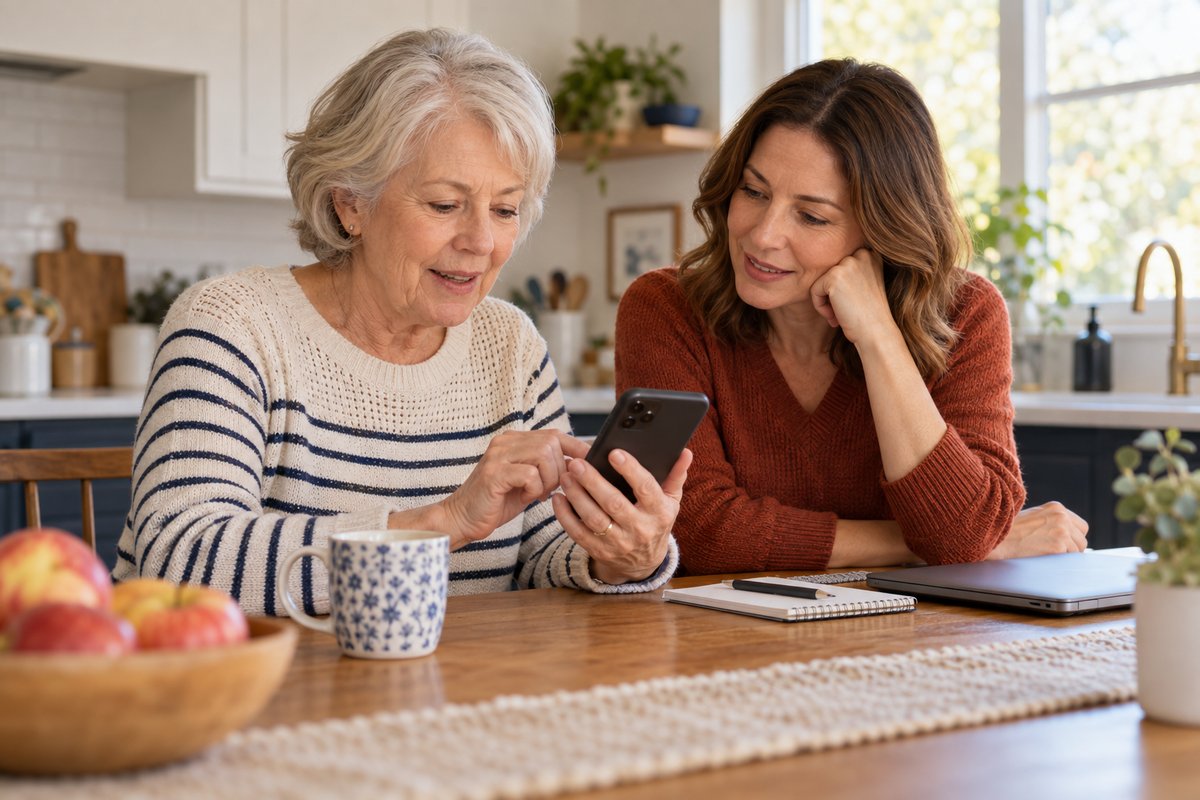
Perhaps your parent wants to reply to an email on a familiar keyboard or look up a store's opening hours on a larger screen. Agree on that task before changing settings. They can keep using their own device while you help with the connection.
A hotspot creates a small Wi-Fi network using the phone's cellular connection. It still needs usable mobile service. This guide covers a brief, ordinary internet task; it does not establish backup connectivity for medical or emergency equipment. Apple explains Personal Hotspot.
If the task is comfortable to complete directly on the phone, a second connection may be unnecessary. Otherwise, choose which nearby phone will supply it. Your phone at another address cannot provide a local hotspot to your parent's tablet.
For the underlying connection problem, see helping a parent whose phone has Wi-Fi but no internet.
02
Check the phone's plan before connecting#
Ask the account holder to check the carrier's app or account page for hotspot access, the remaining allowance, and what happens when it runs out. An unlimited phone plan does not necessarily provide unlimited hotspot use at full speed. Verizon's hotspot FAQ explains that allowances and charges depend on the plan.
Check these three details together:
If the phone is roaming, confirm the applicable terms before testing the connection. International use can be billed under a travel plan or roaming rates. Do not buy an add-on simply because a setup screen offers one. Verizon's international hotspot guidance.
- Is hotspot included on this particular line?
- How much hotspot data remains, and when does the allowance renew?
- Would further use reduce speed, incur charges, or require a paid option?
03
Prepare the phone and keep the password private#
With the plan checked, briefly turn off the phone's Wi-Fi in Settings and try loading a fresh webpage using cellular data. If that fails, address the mobile connection first. A tablet joining the phone will not solve that problem. T-Mobile's troubleshooting guidance distinguishes phone data problems from problems on the connecting device.
For a phone showing No Service or SOS, use our mobile-connection guide before attempting a hotspot.
Keep the phone nearby. Let your parent hold and operate their tablet if they prefer; ask before taking it. Explain: “We're borrowing this phone's internet for this one task.”
Use the hotspot password shown on the phone. Avoid posting it in a family group or sharing a screenshot that exposes it. Keep password protection enabled; on Pixel, do not select None under Security. Google's hotspot settings.
04
If the supplying phone is an iPhone#
On the iPhone:
The hotspot appears under the iPhone's name. If changing its password, Apple requires at least eight characters using English letters, numbers, or supported punctuation. For a first attempt, keeping the existing password avoids an extra change. Apple's current connection instructions.
Optional visual help: Apple Support's Personal Hotspot tutorial is about two minutes and was published March 18, 2022. It is older than the current written instructions, so labels may look different.
- Keep Wi-Fi and Bluetooth on, with both devices nearby.
- Open Settings > Personal Hotspot, or Settings > Cellular > Personal Hotspot.
- Turn on Allow Others to Join.
- Locate Wi-Fi Password, then leave this screen open until the other device connects.
05
If the supplying phone is a Google Pixel#
Open Settings > Network & internet > Hotspot & tethering > Wi-Fi hotspot. Check the hotspot name and password, then turn Wi-Fi hotspot on.
If Data Saver is on, Google says to turn it off for Wi-Fi tethering. Note that change so you can restore it afterward. Google also cautions that some instructions apply only to Android 14 and later. Google's Pixel hotspot guide.
Stay with the regular name-and-password connection for this attempt. You do not need to set up shared Google accounts or a new family arrangement to complete these steps.
06
If the supplying phone is a Samsung Galaxy#
Open Settings > Connections > Mobile Hotspot and Tethering > Mobile Hotspot. Check the network name and password, then turn the hotspot on.
Depending on the model and software, tap the network name or Information section to see configuration options. Samsung warns that screens can vary by carrier, phone, and software version. Use the labels on the actual phone; avoid changing unrelated settings when a menu differs. Samsung's Galaxy hotspot guide.
Leave security enabled. Samsung's separate connection settings guide identifies the name, password, band, and security controls. There is no need to enable Auto Hotspot or Family sharing for a manual connection.
07
Join from the tablet or laptop and verify access#
On your parent's device, open its Wi-Fi network list. Select the hotspot name you just checked, enter the hotspot password, and choose Join or Connect. The password belongs to the hotspot, rather than the home router. Verizon's connection steps.
Open a fresh webpage before beginning the intended task. A network name appearing as connected does not by itself demonstrate that the internet is working. Samsung includes opening a browser or internet-dependent app as its verification step. Samsung's connection check.
Connect only the device needed for now. Your parent's laptop may show Wi-Fi while its internet traffic uses the supplying phone's mobile plan.

08
Keep data use and battery use manageable#
Save streaming, large downloads, and photo backups for the usual connection. Also check for downloads already running on the laptop. Software updates, cloud backups, and app refreshes can consume data in the background. Verizon's data-use explanation.
Have a charger available; Google recommends plugging in devices while tethering. Pixel's Turn off hotspot automatically control is inside Wi-Fi hotspot settings. It can stop sharing when no devices are connected. Google's battery guidance.
On supported Samsung screens, find Mobile Hotspot > Information > Advanced > Turn off when no device connected for. Choose an available timeout. Samsung's timeout instructions. This is a useful fallback, but a connected device can continue using data. Manually finish the session.
09
If it does not connect, keep troubleshooting small#
Check the hotspot switch, exact network name, and password first. Keep the devices nearby and confirm Wi-Fi is enabled on the receiving device. If the connection stopped after a pause, check whether the hotspot timed out.
If one webpage fails, try another. If the phone has internet but the tablet does not, check the carrier's hotspot allowance and the tablet's connection. These are initial checks described in T-Mobile's troubleshooting guide.
If the controls are missing or the problem persists, use the carrier's or device maker's support for that exact model. Pause the task rather than guessing through resets or account changes.
10
Finish by returning to the usual connection#
After saving the work, disconnect the tablet or laptop from the hotspot. When home Wi-Fi is working again, select its familiar network name and open a webpage to check access.
On iPhone, turn Allow Others to Join off. On Pixel or Samsung, turn the hotspot switch off. Restore Pixel Data Saver if you disabled it, and reconnect the supplying phone to home Wi-Fi when available. Apple's disconnect options, Google's finish guidance.
Ask your parent to point out the network name now in use. This gives both of you a concrete finish check, especially when the Wi-Fi symbol looked similar throughout.
Sources and further reading
We favor primary public-health guidance and official product documentation. Section links identify context for documented facts, not validation of our own family-planning steps, schedules or examples. Sources do not imply endorsement of Haven & Signal.
Apple: connect to Personal HotspotOfficial documentation reviewed September 29, 2026. No hands-on device or account test is claimed.↗Google: Pixel hotspot guideOfficial documentation reviewed September 29, 2026. No hands-on device or account test is claimed.↗Samsung: Galaxy hotspot guideOfficial documentation reviewed September 29, 2026. No hands-on device or account test is claimed.↗Samsung: connection optionsOfficial documentation reviewed September 29, 2026. No hands-on device or account test is claimed.↗Verizon: mobile hotspot FAQOfficial documentation reviewed September 29, 2026. No hands-on device or account test is claimed.↗Verizon: data usage FAQOfficial documentation reviewed September 29, 2026. No hands-on device or account test is claimed.↗T-Mobile: hotspot troubleshootingOfficial documentation reviewed September 29, 2026. No hands-on device or account test is claimed.↗Apple Support: Personal Hotspot tutorialOfficial documentation reviewed September 29, 2026. No hands-on device or account test is claimed.↗About this guide
Sources, scope and updates.
- Research
- Haven & Signal Research Desk
- Sources checked
- September 29, 2026
- First published
- September 30, 2026
This guide draws on the linked sources and practical editorial guidance. It does not report hands-on product testing, independent fact-checking, and an expert assessment. Check current instructions with the relevant provider before acting.
This guide contains no affiliate links or paid placements.