
The short answer
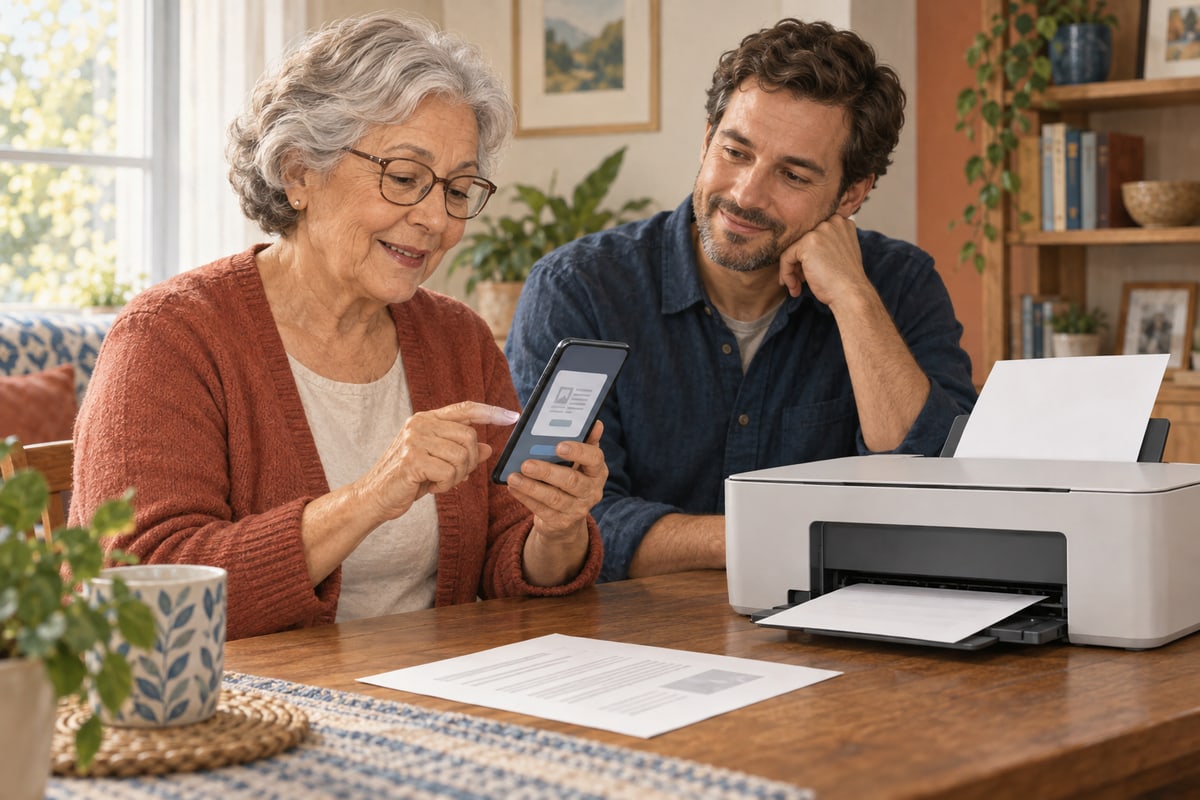
Start with the document already open, a compatible printer and one practice page. Before sending anything, check the printer name, selected pages and number of copies.
In this guide 9 sections
What to keep in mind
- 1Choose one ordinary page and let the phone owner control the task.
- 2Check the exact printer, local network and app before installing anything.
- 3Preview the printer name, selected pages and one copy before printing.
- 4Inspect or cancel a waiting job before trying again.
The useful outcome is a readable sheet your parent wanted, plus a familiar route they can repeat. A booking confirmation, a family recipe or a short set of directions can be a better first exercise than an urgent form.
01
Choose the paper before changing the phone#
Ask, “Which part would you like on paper?” Open that exact document together. Check its title and date, and scroll to the last page so you know what it contains. An email might include a long conversation below the useful information; a website may have extra material around the article.
For the first attempt, choose something without account numbers, medical details or other private information. Let your parent hold the phone and decide what happens next. You can read the options aloud while they make the selection.
If the document is still missing, use our guide to finding downloaded files first. If the starting point is a paper document that needs a digital copy, follow the separate phone scanning guide. Printing starts after the correct file is open.
02
Check the printer, network and app#
Check the printer's exact model against Apple's AirPrint information or the manufacturer's support page. A wireless symbol alone does not establish compatibility.
Connect the phone by Wi-Fi to the printer's local network. An AirPrint printer can use Wi-Fi or Ethernet. Internet access alone is insufficient. Apple explains the requirements.
Check the Wi-Fi name on the phone and the printer's network information. If a helper originally set up the printer, ask which connection they used. Avoid changing router settings during the first printing session, especially if other household devices depend on it.
The app must support printing. If its controls differ, check its help before installing anything unfamiliar.
03
On iPhone: choose AirPrint and one copy#
With the chosen document open:
- Open the app's Share or Actions menu and look down the list for Print.
- Tap No Printer Selected, then choose the intended AirPrint printer.
- Set one copy and choose the page or pages you need.
- Check the preview before tapping Print.
These are Apple's AirPrint steps. In some apps, start under More or Reply, as Apple's iPhone guide explains.
After one attempt, wait and look at the printer. If nothing arrives, check the job rather than pressing Print again immediately. Repeated attempts make it harder to tell which copy is still waiting.
04
On Android: try the existing print service first#
On Pixel, Google documents Settings → Connected devices → Connection preferences → Printing. Select and enable the appropriate service; Add service is available if needed. Some steps require Android 14 or later. Other manufacturers arrange these menus differently.
Android's Default Print Service provides core printing for compatible printers. Check the existing service first. Mopria explains what is built in.
In Chrome on Android, tap More → Share → Print. Choose the printer at the top, inspect settings with the down arrow, then tap Print. Save as PDF produces a file, not paper. Google's Chrome instructions cover this example.
For another app, use its own Print option. Do not assume that a button in Chrome will appear in the same place in a document viewer.
05
On Samsung Galaxy: find Printing under Connections#
Samsung documents Settings → Connections → More connection settings → Printing → Default print service, then More options → Add printer. Use Download plugin only if the printer requires one. Allow for differences on the particular Galaxy phone.
06
Read the preview together#
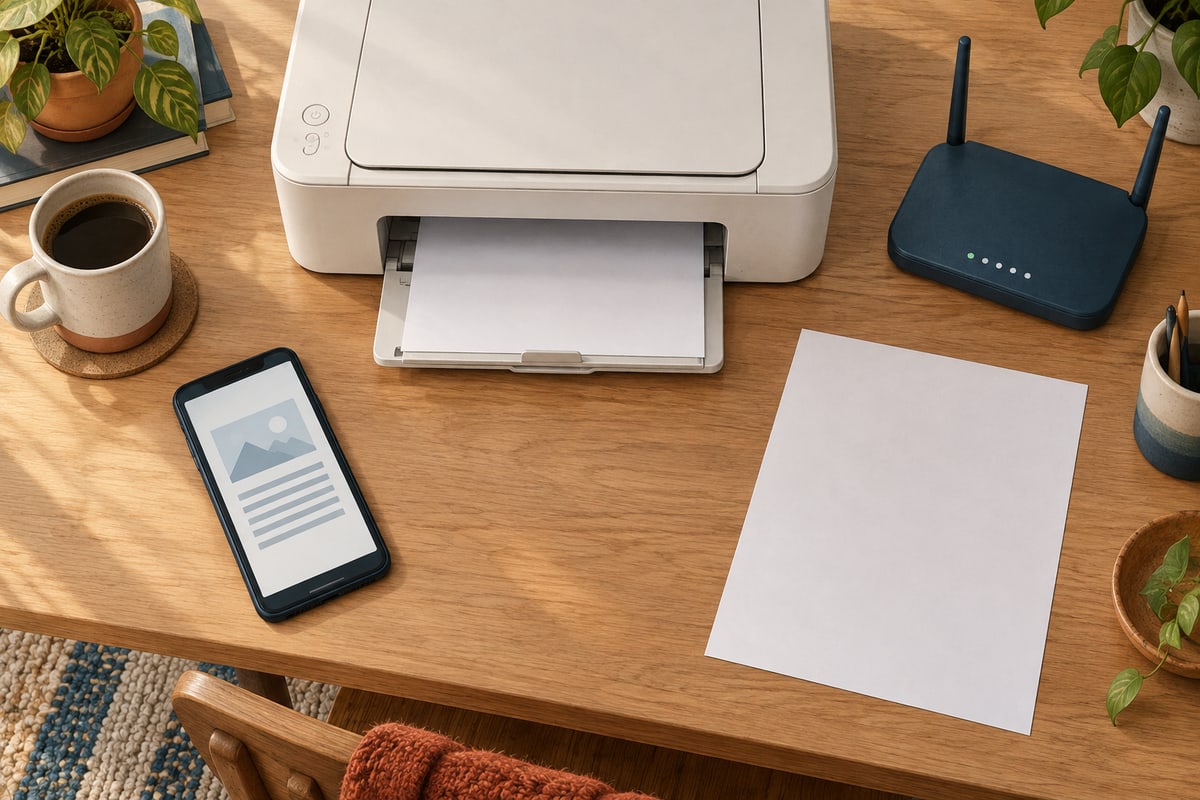
Pause at the preview and ask your parent to confirm three things: “Is that our printer? Is that the page you want? Does it say one copy?” This makes the final tap a deliberate choice.
Then inspect the page itself. Look at the edges and the last lines. If something important is cut off, return to the available settings before printing more. Check that the selected paper size matches the paper in the tray, and inspect orientation or scaling options if the app offers them.
A document that fits on one sheet can still be uncomfortable to read. After the practice page arrives, ask your parent to read a heading and a few ordinary lines at their usual reading distance. If it is too small, reconsider the layout or the document version. Printing more copies of the same tiny text will not solve that problem.
Keep the original file until you have checked the finished paper. Printing is not a reason to delete it.
07
When it does not print, narrow down one problem#
Use the symptom you can actually see. This is a short stopping checklist, not a reason to reset the phone.
| What you see | Next useful check |
|---|---|
| No Print option | Check the app's help. Try opening the original file in a familiar app that supports printing. |
| Printer absent or unavailable | Recheck the model's compatibility, power and connection, then inspect the printer's own display. |
| A job is waiting | Inspect the queue before retrying. Cancel unwanted attempts. |
| Paper comes out incomplete or hard to read | Compare it with the preview and adjust one available layout setting. |
| A file saves but no paper appears | Check whether the destination was Save as PDF. |
Mopria's troubleshooting FAQ also checks the enabled service, paper, ink or toner and displayed errors. Keep any error wording for the manufacturer's support team.
If the phone also cannot get online, the separate Wi-Fi troubleshooting guide can help you distinguish a wider connection problem from this printing task.
08
Know how to stop a job#
iPhone: open the App Switcher and look for Print Center. Select the relevant job, then Cancel Printing. Apple documents this queue control.
Android with Mopria: open the active job's progress notification and tap Cancel. Completed jobs disappear from that notification. Mopria explains cancellation.
Check the physical printer as well. Collect any sheets already produced and make sure your parent knows which copies to keep. Canceling a job cannot undo a page that is already on paper.
09
Leave a familiar route and a sensible fallback#
If this printer or app is unsuitable, agree on a simpler next step: a trusted family computer, a nearby helper or a printing service your parent chooses. Confirm the recipient before sending a file. Share the document needed, without handing over the parent's account password or uploading it to an unfamiliar public conversion site.
For shared printers, agree who will collect the sheets and what happens to unwanted copies. Private documents deserve the same care after printing as before it.
Copy this short practice card onto paper and keep it beside the printer. It is a personal reminder, not a form to submit anywhere:
My printing routine Open the document in my familiar app. Choose Print and check the printer's name. Check the pages, one copy and the preview. Print once, then wait and inspect the result. If nothing happens, check or cancel the job before retrying. Ask my agreed helper if the next step is unclear.
Add the printer's name and your parent's usual app in their own words. Practice the same route again when there is no deadline. One successful exercise establishes that particular route, rather than proving every future file will print correctly.
Frequently asked questions
Can the phone print without home Wi-Fi?
Compatible Android setups can use Wi-Fi Direct to the printer; follow its instructions and reconnect to normal Wi-Fi afterward if necessary. Mopria explains this alternative. Its printing service does not support Bluetooth or cellular data.
Should we print a screenshot instead of the document?
Use the original file when possible so you can check the full document and its pages. A screenshot captures what was selected on screen and may leave out the rest. If a screenshot is the only suitable option, inspect its contents and printed readability before relying on it.
Sources and further reading
We favor primary public-health guidance and official product documentation. Section links identify context for documented facts, not validation of our own family-planning steps, schedules or examples. Sources do not imply endorsement of Haven & Signal.
Use AirPrint to print from your iPhone or iPadChoose an AirPrint printer, pages and copies, and check app support. Documentation checked October 13, 2026.↗Print from iPhoneFind the Print command and inspect or cancel queued jobs in Print Center. Documentation checked October 13, 2026.↗About AirPrintCheck AirPrint compatibility for the exact printer model. Documentation checked October 13, 2026.↗Print from your deviceEnable a print service on Pixel and check version-specific settings. Documentation checked October 13, 2026.↗Print from Chrome on AndroidPrint from Chrome on Android and distinguish Save as PDF from paper output. Documentation checked October 13, 2026.↗Connection options for your Galaxy phone or tabletFind Galaxy printing settings and check whether a plugin is needed. Documentation checked October 13, 2026.↗Print From AndroidUse supported Android print services and understand Wi-Fi Direct options. Documentation checked October 13, 2026.↗Mopria print and scan support FAQCheck printer errors, supplies and connections, and cancel an active print job. Documentation checked October 13, 2026.↗About this guide
Sources, scope and updates.
- Research
- Haven & Signal Research Desk
- Sources checked
- October 13, 2026
- First published
- October 13, 2026
This guide draws on the linked sources and practical editorial guidance. It does not report hands-on product testing, independent fact-checking, and an expert assessment. Check current instructions with the relevant provider before acting.
This guide contains no affiliate links or paid placements.