
The short answer
Charge the headphones, put them into their documented pairing mode, then select their name in the phone's Bluetooth settings. If they are already paired, try reconnecting first. Check where the sound plays, then practice returning it to the phone before finishing.
In this guide 10 sections
What to keep in mind
- 1Pairing saves the relationship; connecting makes the headphones available now. Everyday listening should not require deleting the pairing.
- 2Powering headphones on does not always put them into pairing mode. Follow the instructions for the exact model.
- 3A connected label does not prove that music and calls are using the same audio route. Check the task your parent wants to do.
- 4Practice both directions: listening through the headphones and bringing sound back to the phone.
01
Identify the headphones before changing settings#
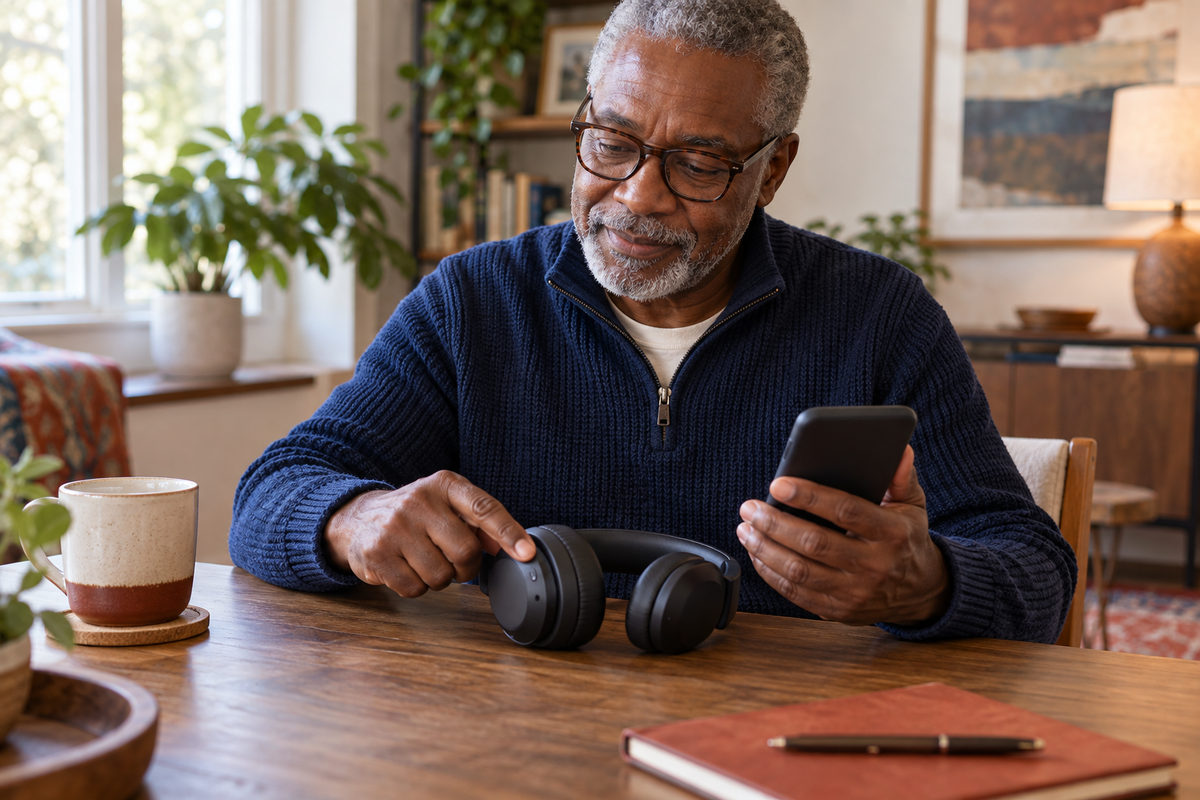
Start with the activity your parent wants: an audiobook in the living room, music while sitting outside, or an ordinary family call. Ask them to keep the phone and do the taps while you explain one step at a time.
Find the headphone model on the device, charging case, or packaging. Open its manufacturer's instructions and note the Bluetooth name to look for. This avoids choosing a television or a neighbor's similarly named accessory. Ordinary Bluetooth speakers follow a similar connection process, but their controls can differ.
This guide covers ordinary headphones and speakers. Leave any existing hearing-device pairing unchanged; use that device's manufacturer or hearing-care professional for its setup. If phone calls are difficult to hear, use that separate troubleshooting guide too.
02
Charge the headphones and find their pairing mode#
Keep the phone and headphones together for setup. Check that the headphones have power; charge them or their case if needed. Turn them on, then follow the model's instructions for making them discoverable. A button press, open case, flashing light, or spoken prompt can indicate readiness, but the action is not identical across products.
If they worked with this phone before, first look for their saved name and try connecting. You may not need pairing mode at all. If they are new to this phone, pairing mode makes them available for the initial setup.
If nothing happens, switch the accessory off and on, check its charge, and repeat the documented pairing action. Apple's connection checklist makes these basic checks a starting point.
03
On iPhone, pair in Bluetooth settings#
Open Settings > Bluetooth and turn Bluetooth on. With the headphones discoverable, select their name when it appears. Complete any pairing prompt. If an accessory requests a PIN, use its manual or official instructions rather than guessing an account password.
Wait for the connection indication before opening the audio app. If the headphones are already saved, tapping their name may reconnect them. Do not choose Forget This Device simply because today's connection has not started yet.
Apple's Bluetooth accessory instructions cover this settings route. AirPods can also use their own setup prompt; follow the instructions for the model you have. The walkthrough here does not assume every wireless headset behaves like AirPods.
04
On Pixel and other Android phones, find the saved or new device#
On Pixel, open Settings > Connected devices > Connection preferences > Bluetooth and ensure Bluetooth is on. Choose Pair new device, select the headphones, and follow the prompts. For headphones already paired, select the saved accessory to connect instead.
Other Android phones can organize these options differently. Google's Android accessory guidance also describes touching and holding Bluetooth in Quick Settings, then choosing Pair new device. Use the manufacturer's instructions if the labels differ.
A Fast Pair popup is a convenience for supported accessories, not a requirement for all headphones. If no popup appears, try the ordinary settings route. Google's Pixel connection guide distinguishes these two methods.
05
On Samsung Galaxy, use Connections and Bluetooth#
Open Settings > Connections > Bluetooth. Enable Bluetooth, put the headphones into pairing mode, and choose their name under available devices. Confirm the pairing request if one appears. The accessory's own instructions should explain any PIN or additional setup.
For a device used before, check the paired-device list first. Samsung notes that some accessories need a support app for their particular features; do not install an unfamiliar app solely because a random popup offers to fix Bluetooth.
Samsung's current pairing instructions are the written reference. Its short video, Connect your Galaxy device to Bluetooth, demonstrates the settings route. The video was published in 2022, so panel layout and labels can differ on newer software.
06
If they connect but stay silent, check the sound destination#
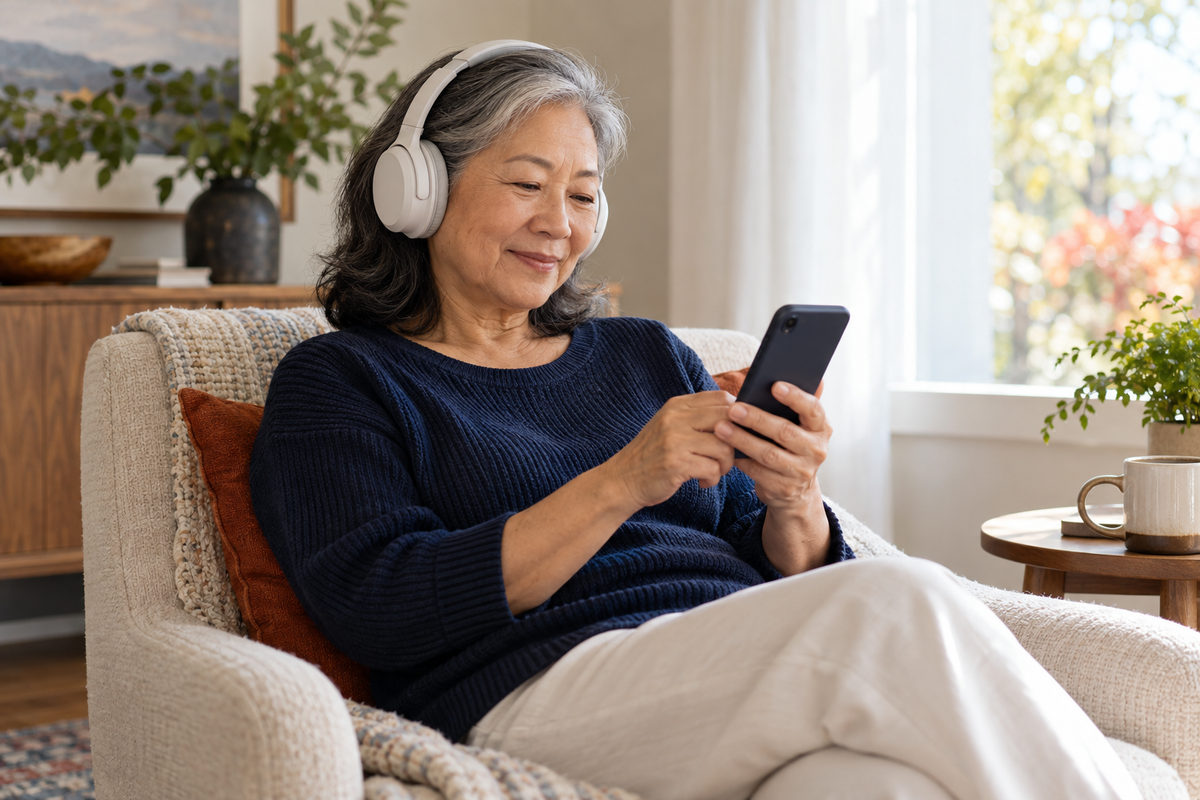
Play a familiar short audio item and check that it is actually playing. Look at both the phone's and accessory's volume controls. Ask your parent whether the sound comes from the headphones, phone, or another device.
On iPhone, use the audio app's playback-destination button, or the playing-audio controls in Control Center, to select the headphones. Apple documents changing that destination.
On supported Galaxy phones, open Quick Settings and Media output, then choose the headphones. Newer layouts may open Quick Settings from the top right. Samsung's Media panel guide covers switching between the phone and connected accessories.
On Android, an accessory's settings may separately offer Media audio and Phone audio. Google's troubleshooting guide explains these switches. Music working does not establish that a call will use the headphones too.
07
Check whether another device is holding the connection#
Ask whether the headphones were last used with a tablet, laptop, television, or someone else's phone. Pause audio there and use that device's connection controls to disconnect the headphones temporarily. Then select them on your parent's phone. Do not delete every saved Bluetooth device to solve one accessory's problem.
Some headphones support two active devices through Multipoint; others do not. Google's Multipoint instructions explain that switching media sources can require stopping playback on one device before starting it on the other. Check the headphone manual rather than assuming this feature exists.
If automatic switching keeps confusing the routine, practice with the parent's phone as the only connected audio source first.
08
Rebuild only the troublesome pairing if necessary#
If basic checks and reconnecting fail, forgetting this one accessory and pairing it again is a narrower step than resetting the phone's connections.
On iPhone, use Settings > Bluetooth > information button beside the accessory > Forget This Device. On Pixel, open the saved accessory's settings and choose Forget. On Galaxy, use Settings > Connections > Bluetooth, open the gear beside the accessory, and choose Unpair. Then repeat its pairing instructions.
Read the confirmation first. Apple warns that forgetting an accessory can remove its pairing from other devices using the same Apple Account. Samsung's troubleshooting page distinguishes unpairing one device from resetting Wi-Fi and Bluetooth settings, which removes saved connections. Save broader resets for manufacturer-guided troubleshooting with a reconnection plan.
09
Bring the sound back to the phone#
Before finishing, pause playback and show your parent how to choose the phone in the same audio-output selector. Alternatively, disconnect just the headphones in their accessory controls or switch them off according to their instructions. Start playback again and confirm where it comes from.
This is preferable to teaching Forget as an everyday stop button. The saved pairing remains useful for the next session.
On iPhone, the Bluetooth control in Control Center disconnects accessories rather than fully switching Bluetooth off. Use the individual accessory or playback controls for a clearer, repeatable headphone routine. Apple's iPhone Bluetooth guide explains the difference.
10
Practice the everyday routine together#
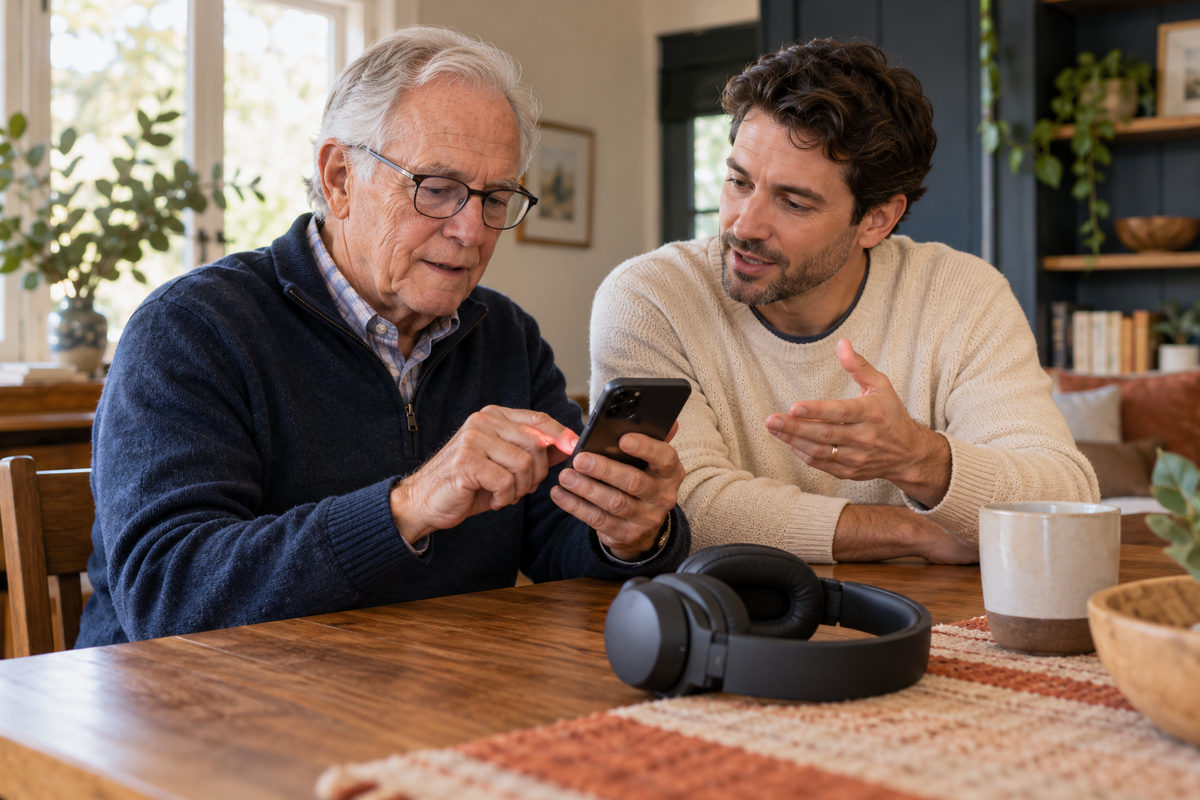
Let your parent complete one fresh cycle: turn the headphones on, reconnect if needed, start their chosen audio, pause it, and return sound to the phone. If calls are the goal, make an ordinary test call together and check both listening and speaking. For an app-based conversation, use our guide to easier video calls.
Keep a small note with the accessory name, charging location, and the action that worked. Record what you actually observed, such as “tap this saved name when it does not reconnect.” Avoid promising that every future connection will be automatic.
If the phone cannot connect to any known-working accessory, or Bluetooth is unavailable, contact the phone maker. If only these headphones fail, check their manufacturer's support next.
Sources and further reading
We favor primary public-health guidance and official product documentation. Section links identify context for documented facts, not validation of our own family-planning steps, schedules or examples. Sources do not imply endorsement of Haven & Signal.
connection checklistOfficial product documentation reviewed September 28, 2026.↗Bluetooth accessory instructionsOfficial product documentation reviewed September 28, 2026.↗Android accessory guidanceOfficial product documentation reviewed September 28, 2026.↗Pixel connection guideOfficial product documentation reviewed September 28, 2026.↗current pairing instructionsOfficial product documentation reviewed September 28, 2026.↗Samsung Care: Connect your Galaxy device to BluetoothOfficial Samsung Care video availability and creator reviewed September 28, 2026; this is an older interface overview.↗changing that destinationOfficial product documentation reviewed September 28, 2026.↗Media panel guideOfficial product documentation reviewed September 28, 2026.↗troubleshooting guideOfficial product documentation reviewed September 28, 2026.↗Multipoint instructionsOfficial product documentation reviewed September 28, 2026.↗troubleshooting pageOfficial product documentation reviewed September 28, 2026.↗iPhone Bluetooth guideOfficial product documentation reviewed September 28, 2026.↗About this guide
Sources, scope and updates.
- Research
- Haven & Signal Research Desk
- Sources checked
- September 28, 2026
- First published
- September 28, 2026
This guide draws on the linked sources and practical editorial guidance. It does not report hands-on product testing, independent fact-checking, and an expert assessment. Check current instructions with the relevant provider before acting.
This guide contains no affiliate links or paid placements.