
The short answer
Open the verified website in Safari on iPhone or Chrome on Android, use the browser's home screen or shortcut option, and give it a recognizable name. Then let your parent open the new icon and check where it goes. The icon may open a browser page or a web app; it does not guarantee offline access, keep someone signed in, or make the website trustworthy.
In this guide 7 sections
What to keep in mind
- 1Choose one familiar website and verify its address before saving it.
- 2A bookmark stays in the browser; a home screen shortcut puts a route to the website among the phone's icons.
- 3A web app is still based on a website, even when it opens like an app.
- 4Use the parent's preferred label and practice opening, returning home, and handling a sign-in request.
- 5Keep a bookmark as a fallback and learn the removal option for the new icon.
Finding the same library, community center, or local news website should not require a fresh search every time. A saved icon can give your parent a familiar starting point, especially when search results, open tabs, and browser menus feel crowded.
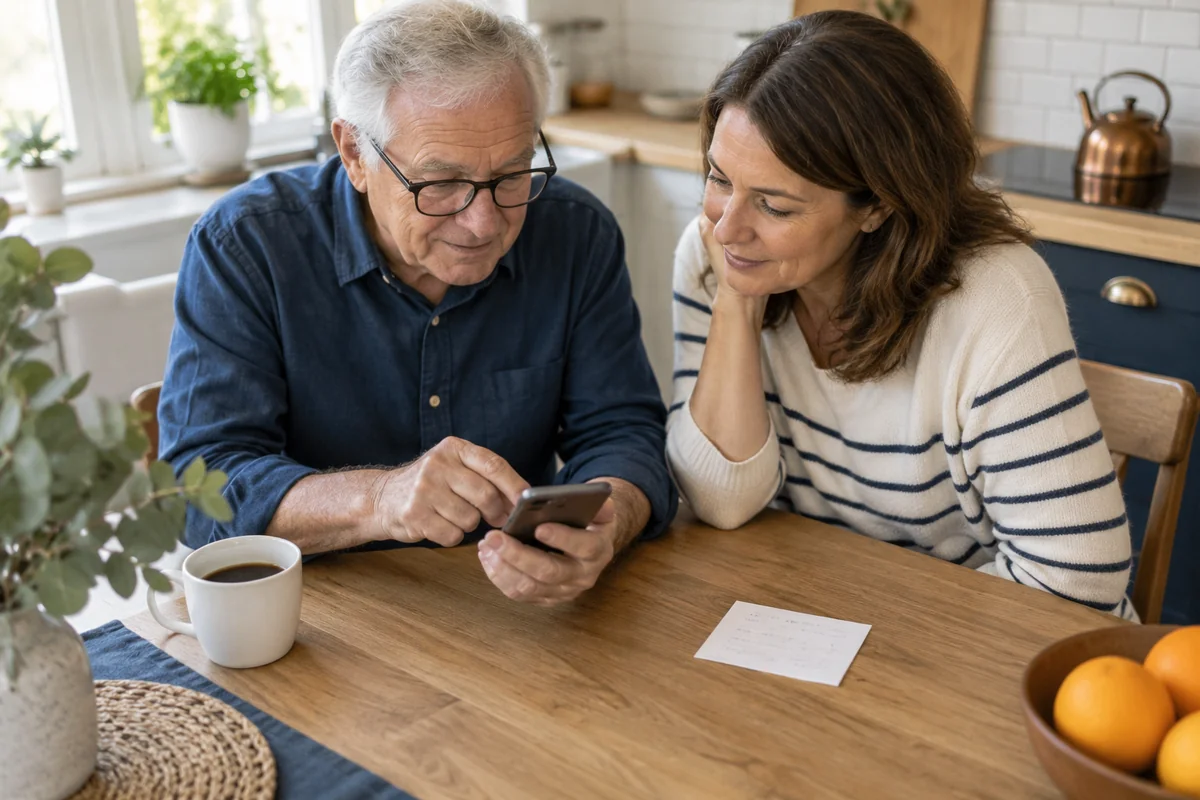
Choose one site together. Let your parent hold the phone and make the taps where comfortable. The useful result is an icon they recognize and can open again themselves.
01
Know what you are saving#
These options can look similar but work differently:
| Option | Where your parent finds it | What it does |
|---|---|---|
| Bookmark or favorite | Inside the browser | Saves a route back to a web page. |
| Home screen shortcut | Among the phone's icons | Opens a saved website, often in the browser. |
| Web app | Usually through its own icon | Lets a website open and behave more like an app. Features depend on the site. |
| Native app | Installed on the phone | Separate phone software, such as an app obtained through the App Store or Google Play. |
Google distinguishes Chrome website shortcuts from installed web apps. Apple also offers an Open as Web App choice in Safari. Saving a site this way does not mean you installed the organization's native app. Google's web app guidance and Apple's web app guidance explain the options.
02
Check the address before adding an icon#
Start from an address you already trust, such as the organization's address printed on a familiar letter or confirmed through an established contact. Open that address in the browser and read it together. Do not rely on a familiar logo or the first search result.
Check spelling carefully. An unexpected extra word or changed letter deserves a pause. For a service that redirects to another company's account portal, confirm that destination with the organization before saving it.
HTTPS protects the connection, but it does not prove that the business or website is trustworthy. Apple specifically advises checking the address and warns about look-alike spellings. Stop if the browser displays a security warning. Apple's guidance on encrypted websites
Choose a stable starting page, such as the library catalog. Avoid saving a temporary checkout page, a password-reset link, or a private document. If the address came from a QR code, our QR code safety guide can help with the check before you save it.
03
On iPhone: use Safari#
Menu placement depends on the Safari layout and iOS version. Begin in Safari itself, with the verified page open.
- Open Safari's page menu and choose Share, or tap the Share button if your layout shows it directly.
- Scroll through the actions and choose Add to Home Screen.
- If that action is missing, scroll to Edit Actions and add Add to Home Screen to the available actions.
- Review the preview and any name field. Choose a short label your parent recognizes.
- If Open as Web App appears, turn it on when your parent wants the site to open like an app. Otherwise, keep the browser-style route if offered.
- Tap Add, return to the Home Screen, and find the new icon together.
Apple documents both the Share route and the optional web app behavior. Its guide also notes that the icon is added only to that device. Apple's Safari instructions
04
On Android: use Chrome#
Open Chrome itself and visit the verified page. Google's current shortcut instructions use the following wording:
- Tap More, the three-dot menu beside the address bar.
- Choose Install and create shortcut, then Create shortcut.
- Review or change the proposed name.
- Tap Add and complete any placement confirmation the phone presents.
- Return to the phone's home screen and find the icon.
A shortcut displaying the Chrome logo opens in Chrome. Google's website shortcut instructions
For a supported web app, the menu can instead lead to Install. That is a separate choice from creating a simple shortcut. If your screen uses different wording, pause and read the choices; use a bookmark below if you cannot identify the intended action. Avoid following a website advertisement's install button. Google's installation instructions
05
Use a bookmark when that feels easier#
Your parent may prefer opening a familiar browser and choosing a saved name. That is a useful outcome too.
- Safari: Look for Add Bookmark to in the page menu, choose a location, and save. With some layouts, touch and hold the bookmarks button and choose Add Bookmark. Open the bookmarks view afterward and find the saved page. Apple's bookmark guidance
- Chrome on Android: Open More, then Add to bookmarks, shown with a bookmark or star symbol. Reopen it through More > Bookmarks and the folder containing it. Google's bookmark guidance
- Samsung Browser or Samsung Internet: Save the page using the bookmark star, then open the bookmark list. Samsung also documents editing a bookmark's name. Find the controls on the parent's version rather than assuming they occupy the same position. Samsung's bookmark guidance
In Samsung's settings, Homepage means a page inside the browser. It is different from the phone's home screen. Samsung's homepage explanation
06
Choose a useful name and practice the whole trip#
Use the words your parent already uses: Library, Town Events, or Local News. Avoid several icons with almost identical names. Keep private account numbers and passwords out of labels.
Agree on a location your parent can find without reorganizing the rest of the phone. Then try this short practice:
- Start from the phone's home screen.
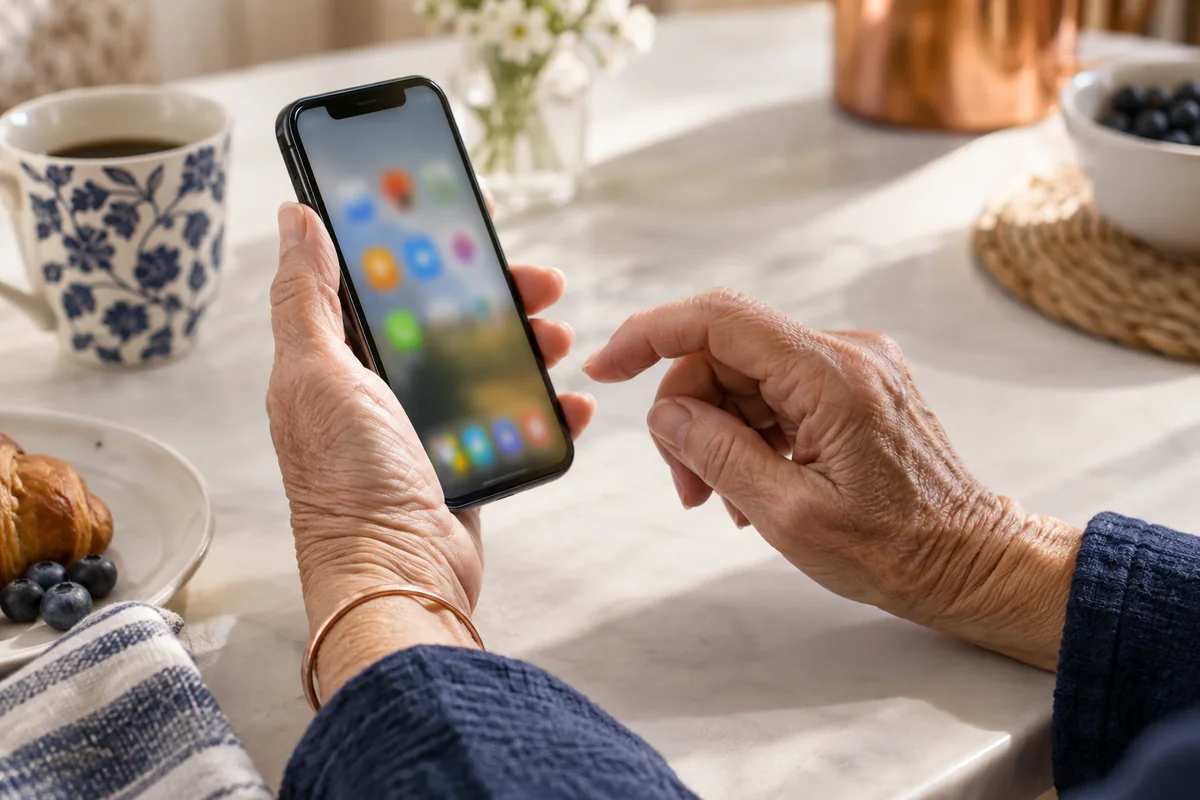
- Ask your parent to find and tap the saved icon.
- Check that it opens the intended site and a useful starting page.
- Look for one familiar item, such as opening hours.
- Return to the home screen and open the site once more.
If it opens the wrong page, use the verified browser address again and correct the saved route. If the icon is hard to tap, try the small adjustments in our easier touch controls guide.
Check sign-in during this practice. A saved icon is not a promise that the account will stay signed in. If credentials are requested, let your parent use their established sign-in method privately. Do not create a second account merely because a sign-in page appears.
A reminder card can say “Tap Library; use your usual sign-in if asked.” Leave passwords, recovery codes, and phone passcodes off the card. Our family password manager guide covers access arrangements separately.

07
Learn how to undo it#
Before removing anything, identify the icon you just added. On iPhone, touch and hold it and read the removal or deletion option presented for that item. Labels can differ between a saved website and an app. Cancel if the prompt is unclear. Apple's removal guidance
On Android, touch and hold the shortcut and use Remove if offered. Google distinguishes removing an icon from uninstalling an app. An installed web app can be uninstalled through the phone's app settings. Read any data warning before confirming. Android home screen guidance and Chrome web app removal
You can recreate the saved route from the verified address. Keep the browser bookmark until your parent is comfortable using the icon.
Frequently asked questions
Will the website work without Wi-Fi?
It may work over cellular data if available. Saving an icon does not download the website. Some web apps offer limited offline features, but do not assume the page or account task will work without an internet connection. Google's web app guidance
Does a home screen icon make the website safer?
No. It makes a saved destination easier to reach. Verify the address first and continue taking browser warnings or unexpected requests seriously.
Why does the website ask my parent to sign in again?
The icon and the account's sign-in status are different things. Recheck the destination, then use the usual sign-in method. Do not put a password into the icon's name or a visible reminder.
What if there is no home screen option?
Confirm which browser is open and use its current help instructions. Save a bookmark if the shortcut action remains unavailable. Practice finding that bookmark together so your parent still has a familiar route back.
Sources and further reading
We favor primary public-health guidance and official product documentation. Section links identify context for documented facts, not validation of our own family-planning steps, schedules or examples. Sources do not imply endorsement of Haven & Signal.
Bookmark a website in Safari on iPhoneOfficial documentation reviewed October 1, 2026. No hands-on device test is claimed.↗Turn a website into an app in Safari on iPhoneOfficial documentation reviewed October 1, 2026. No hands-on device test is claimed.↗Digital certificates and encrypted websites in Safari on iPhoneOfficial documentation reviewed October 1, 2026. No hands-on device test is claimed.↗Create shortcuts for websites in ChromeOfficial documentation reviewed October 1, 2026. No hands-on device test is claimed.↗Use web appsOfficial documentation reviewed October 1, 2026. No hands-on device test is claimed.↗Create, find and edit bookmarks in ChromeOfficial documentation reviewed October 1, 2026. No hands-on device test is claimed.↗Use bookmarks in Samsung Browser on your Galaxy phone or tabletOfficial documentation reviewed October 1, 2026. No hands-on device test is claimed.↗Customize the Homepage in Samsung Browser on your Galaxy phone or tabletOfficial documentation reviewed October 1, 2026. No hands-on device test is claimed.↗Remove or delete apps from iPhoneOfficial documentation reviewed October 1, 2026. No hands-on device test is claimed.↗Add apps, shortcuts & widgets to your Home screensOfficial documentation reviewed October 1, 2026. No hands-on device test is claimed.↗About this guide
Sources, scope and updates.
- Research
- Haven & Signal Research Desk
- Sources checked
- October 1, 2026
- First published
- October 1, 2026
This guide draws on the linked sources and practical editorial guidance. It does not report hands-on product testing, independent fact-checking, and an expert assessment. Check current instructions with the relevant provider before acting.
This guide contains no affiliate links or paid placements.